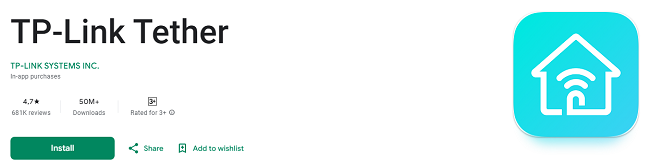
TP-Link Tether App - Download on Your Android & iOS Device
In today’s connected world, managing your home network and devices is more important than ever. TP-Link, a global leader in networking equipment, has developed the TP-Link Tether app to make it easy for users to manage their routers, range extenders, and other TP-Link devices. Whether you are a tech expert or a casual user, TP-Link Tether provides an intuitive interface for controlling and monitoring your network from your Android or iOS device.
This article provides a step-by-step guide on how to download, install, and use the TP-Link Tether app on both Android and iOS devices. We’ll also explore the app’s features and functionality, highlighting how it simplifies the management of your TP-Link network.
What is TP-Link Tether App?
The TP-Link Tether app is a mobile application that lets you manage TP-Link routers, xDSL routers, and range extenders with ease. Whether you're at home or on the go, you can access your device's settings, monitor connected devices, adjust Wi-Fi settings, and more—all from the convenience of your smartphone or tablet.
With TP-Link Tether, you can:
Set up Wi-Fi SSID, passwords, and internet settings on your TP-Link devices.
Monitor and manage connected devices by checking their status and controlling their access.
Enable parental controls to restrict internet access for specific devices or users.
Control LED lights on your TP-Link router or extender for convenience.
Find the best location for range extenders to improve Wi-Fi coverage.
Block unauthorized devices from accessing your network.
The app is free to download and offers a simple, user-friendly interface that makes network management accessible to everyone, regardless of their technical expertise.
Step-by-Step Guide to Download & Install TP-Link Tether App
Before using the TP-Link Tether app, you’ll need to download and install it on your mobile device. The process is easy for both Android and iOS users.
For Android Devices:
Open the Google Play Store
Unlock your Android device and open the Google Play Store from your app drawer.
Search for "TP-Link Tether"
In the search bar at the top, type “TP-Link Tether” and press the Enter key or tap the magnifying glass icon.
Select the Official App
Look for the TP-Link Tether app published by TP-Link. Be sure to select the official app, which is typically the first result in the search list.
Tap “Install”
Tap the Install button next to the app’s name. The app will automatically begin downloading and installing on your Android device.
Open the App
Once the installation is complete, you’ll see the Open button. Tap it to launch the TP-Link Tether app.
For iOS Devices:
Open the App Store
Unlock your iPhone or iPad and open the App Store from your home screen.
Search for "TP-Link Tether"
Tap on the Search tab at the bottom of the screen. In the search bar, type “TP-Link Tether” and press Enter or tap the search icon.
Download the App
Select the TP-Link Tether app from the search results. Tap the Get button, and you may be prompted to enter your Apple ID password or use Face ID/Touch ID to confirm the download.
Install the App
The app will begin downloading and installing on your device. Once the installation is complete, the Open button will appear.
Launch TP-Link Tether
Tap the Open button to start using the TP-Link Tether app on your iPhone or iPad.
How to Set Up and Use TP-Link Tether?
Once you have the TP-Link Tether app installed on your Android or iOS device, the next step is to set it up and start using it to manage your TP-Link devices. Follow these simple steps to get started.
Step 1: Connect to Your TP-Link Device
For the TP-Link Tether app to function, your mobile device must be connected to the TP-Link router, xDSL router, or range extender that you want to manage.
Connect to Your TP-Link Wi-Fi Network
Make sure your Android or iOS device is connected to the Wi-Fi network broadcasted by the TP-Link router or extender that you want to manage.
Launch the TP-Link Tether App
Open the app from your home screen.
Auto-Detection of Devices
Once the app opens, it will automatically scan for any TP-Link devices connected to the same network. Your router or extender should appear on the app’s home screen. If you're using the app for the first time, the app will guide you through an easy setup process.
Step 2: Setting Up Your TP-Link Device
After connecting to your TP-Link device, you can start configuring it to suit your needs. The TP-Link Tether app provides a range of customization options for your devices.
Configure Wi-Fi Settings
Change the SSID (Network Name)
In the device settings, you can change the SSID (the name of your Wi-Fi network) to something more personalized or easily recognizable. For example, “John’s Home Network” or “My Office Wi-Fi.”
Set a Strong Password
Under the Wi-Fi settings section, you can change the Wi-Fi password for your network. Choose a strong password that includes a mix of letters, numbers, and special characters to enhance your network security.
Select Wi-Fi Frequency Band
If your TP-Link device supports dual-band Wi-Fi (2.4 GHz and 5 GHz), you can configure the frequency bands to balance speed and coverage based on your needs. The 5 GHz band offers faster speeds, while the 2.4 GHz band offers greater coverage.
Adjust Internet Settings
Set Up Internet Connection
The TP-Link Tether app allows you to easily configure your internet connection type. Depending on your Internet Service Provider (ISP), you can choose between PPPoE, Dynamic IP, or Static IP connection types.
VDSL/ADSL Configuration
For users with xDSL routers, TP-Link Tether allows you to configure VDSL or ADSL settings, including the username, password, and connection parameters provided by your ISP.
Step 3: Manage Connected Devices
Once your TP-Link device is set up, the app allows you to manage and monitor all devices connected to your network.
View Connected Devices
Device List
The TP-Link Tether app shows a list of all devices currently connected to your TP-Link router or extender. This includes details such as the device name, IP address, and MAC address.
Device Information
Tap on any device to view additional details, including connection status, data usage, and signal strength.
Block Unauthorized Devices
If you see an unauthorized device on your network, the TP-Link Tether app allows you to block it with just a few taps.
Block a Device
Simply select the device from the list and tap the Block button to prevent it from connecting to your network.
Manage Device Permissions
For devices you want to allow, you can set specific permissions to limit or prioritize their access to your network.
Step 4: Use Parental Controls
One of the standout features of the TP-Link Tether app is its robust Parental Control functionality. This feature allows you to control the internet access of your children or any other users on your network.
Set Internet Access Schedule
Create a Schedule
The app allows you to set specific times for internet access. For example, you can restrict access to certain times of the day to ensure your kids are not spending too much time online.
Control Internet Access by Device
You can apply the internet access schedule to specific devices, limiting their access to the internet during set hours.
URL-Based Filtering
Filter Websites
TP-Link Tether allows you to block or restrict access to specific websites or URLs. This can be especially helpful for parents who want to ensure their children are only accessing age-appropriate content.
Step 5: Optimize Wi-Fi Coverage with Range Extenders
If you're using a TP-Link range extender, the Tether app makes it easy to ensure your Wi-Fi network has optimal coverage throughout your home or office.
Find the Best Placement for Your Range Extender
Signal Strength Indicator
The app features a signal strength indicator that helps you find the best location for your range extender. This ensures that your Wi-Fi signal is strong and covers the maximum area.
Improve Wi-Fi Coverage
If you're experiencing dead zones or weak signal areas in your home, use the app’s guidance to move your range extender to a better spot for improved coverage.
Step 6: Control LED Lights on TP-Link Devices
Many TP-Link devices come with LED lights that can be distracting, especially during the night. With the TP-Link Tether app, you can manage the LED lights on your router or range extender.
Turn Off LEDs
The app allows you to schedule the turning off of the LED lights on your TP-Link device at specific times, such as during the night.
Conclusion: Take Full Control of Your TP-Link Devices with the Tether App
The TP-Link Tether app is a powerful tool that simplifies the management of your TP-Link devices, from routers to range extenders. Whether you're setting up a new device or managing an existing network, TP-Link Tether offers an intuitive interface for monitoring, configuring, and optimizing your network. By following the steps outlined in this guide, you can easily download, install, and start using TP-Link Tether on your Android or iOS device.
With features like parental controls, device management, Wi-Fi optimization, and LED control, TP-Link Tether enhances your network experience, making it accessible and manageable from the palm of your hand. Download the app today and unlock the full potential of your TP-Link network.
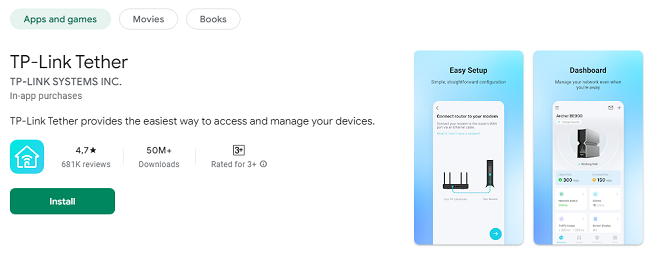
Updates